This article is written in Canadian English and intended for readers in Canada.
If you're trying to download a Windows 10 ISO, this guide will help. It explains how to obtain the Windows 10 ISO file directly from Microsoft, with clear steps for both 64-bit and 32-bit editions.
In addition, we outline the system requirements for installing Windows 10 and share a practical approach to creating a Windows 10 bootable USB drive efficiently.
Direct links for free downloading Windows 10 ISO 64-bit
You can use the following direct download links to obtain the Windows 10 ISO file without additional configuration steps.
An earlier Windows 10 release (21H1) is available here:
Download Windows 10 ISO – 21H1 (5.4 GB, hosted on archive.org)
The most recent Windows 10 update (22H2) can be downloaded below:
Download Windows 10 ISO – 22H2 (5.7 GB, hosted on archive.org)
Download Windows 10 ISO 64-bit from Microsoft
The 64-bit Windows 10 ISO file (approximately 5.7 GB) is designed for most modern PCs released after 2010. Downloading directly from Microsoft is free and helps ensure the file's integrity and security.
Note: Microsoft officially ended Windows 10 support on October 14, 2025. Continuing to use Windows 10 may increase exposure to security risks. If possible, consider upgrading to Windows 11 – Download Windows 11 ISO
Steps to download Windows 10 ISO (64-bit) from Microsoft
- Open the Microsoft Windows 10 ISO (Disc Image) download page.
- Select "Windows 10 (multi-edition ISO)" from the list and click "Confirm."

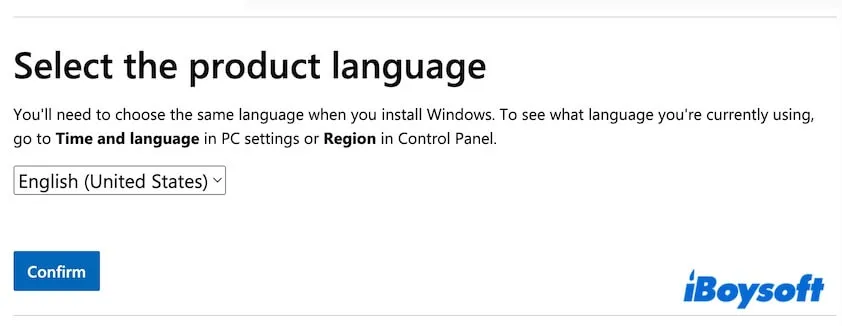
- Choose your current display language and click "Confirm." In this example, English is selected.
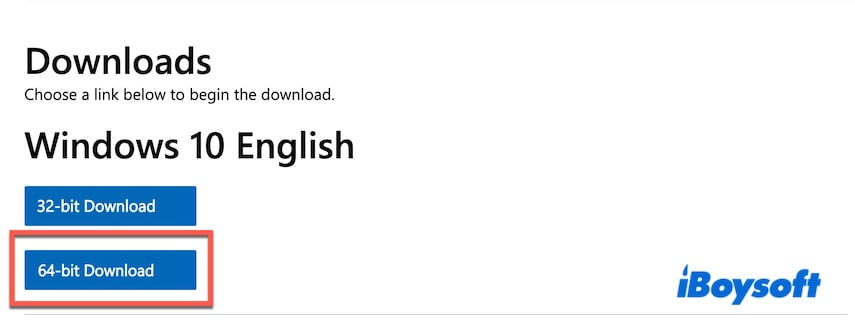
- Click "64-bit Download" and wait for the file to finish downloading.
Before installing Windows 10 (64-bit), review the minimum system requirements:
| Processor | 64-bit CPUs |
| RAM limit | 2 GB to 128 GB |
| App compatibility | Supports both 64-bit and 32-bit applications |
| Installation storage | 32 GB for a clean install or 20 GB for an existing installation |
| Graphics | DirectX 9 or later with WDDM 1.0 driver |
| Display | 800 x 600 resolution or higher |
| Firmware | UEFI or BIOS |
The Windows 10 ISO obtained from Microsoft is a multi-edition image. It includes several editions such as Windows 10 Home, Pro, Education, and Enterprise.
During the installation process:
- If you provide a product key, the installer will automatically deploy the matching Windows 10 edition.
- If you skip the product key step, you can still install and use Windows 10 for free by manually choosing an edition such as Home or Pro. However, certain limitations apply when Windows is not activated.
Feel free to share these steps for downloading the Windows 10 ISO (64-bit).
Download Windows 10 ISO 32-bit
The Windows 10 ISO 32-bit file (around 4.0 GB) is intended for older computers released before 2010.
Follow these steps to download Windows 10 ISO 32-bit from Microsoft at no cost:
- Visit the Microsoft Windows 10 ISO download page.
- Select "Windows 10 (multi-edition ISO)" and confirm.
- Choose your preferred language and confirm.
- Select "32-bit Download" to begin downloading the ISO file.
Minimum system requirements for installing Windows 10 (32-bit):
| Processor | 32-bit CPU |
| RAM | 1 GB |
| Installation storage | 16 GB |
| Graphics | DirectX 9 or later with WDDM 1.0 driver |
| Display | 800 x 600 resolution or higher |
Like the 64-bit version, the 32-bit Windows 10 ISO also contains multiple editions, including Home, Pro, and Education. You can choose the edition during installation.
Create a Windows 10 bootable USB
To prepare a bootable Windows 10 USB for clean installation, recovery, upgrading, or downgrading, you can useiBoysoft DiskGeeker for Windows. The software simplifies what is normally a complex process into a few straightforward steps.
Steps to create a Windows 10 bootable USB
- Download, install, and open iBoysoft DiskGeeker for Windows on your PC.
- Insert an empty USB drive with at least 32 GB of available space.
- Go to Windows > Create Windows OS USB Installer in the Download and create boot disk module.
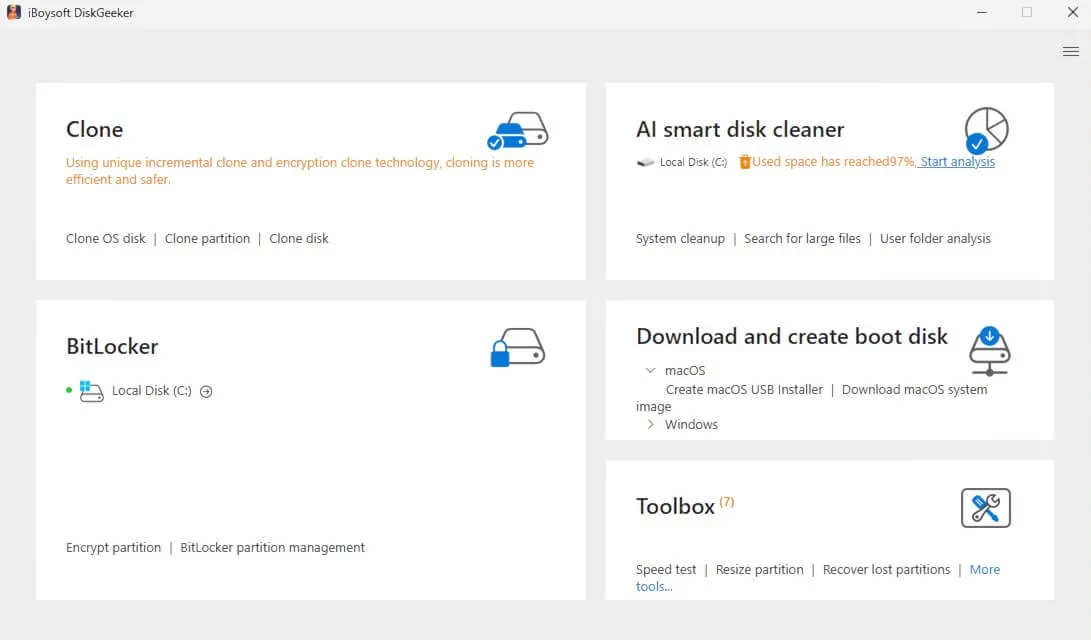
- Select the connected USB drive as the destination disk and click Select.
- Choose Windows 10 and click Start creating boot disk, then confirm to begin downloading the ISO.
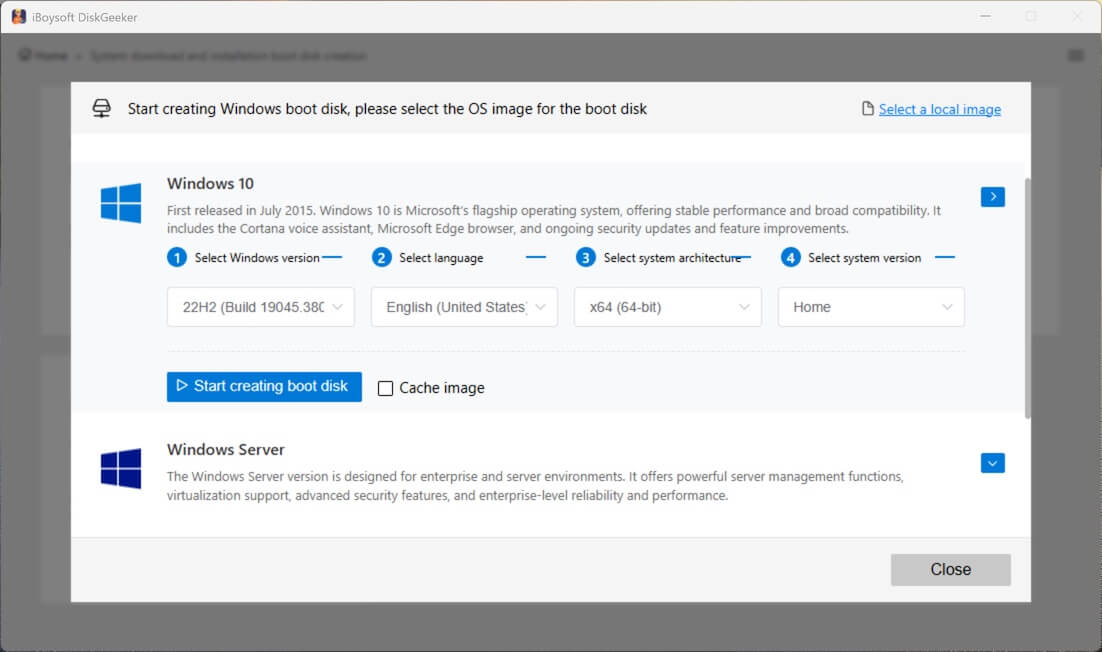
After the download completes, the software automatically creates the Windows 10 bootable USB.
Booting a PC from the Windows 10 USB
- Insert the Windows 10 bootable USB into the computer.
- Restart the PC and press the Boot Menu key repeatedly.
Common Boot Menu keys:
Dell: F12
HP: F9 or Esc
Lenovo: F12
Acer: F12
ASUS: Esc or F8
MSI: F11
Note: If your computer doesn't have a Boot Menu, enter BIOS/UEFI (usually press Delete, F2, or Esc) and change the Boot Order to put USB first.
If your system does not display a Boot Menu, enter BIOS or UEFI (usually by pressing Delete, F2, or Esc) and set the USB drive as the first boot option.
Once selected, the computer will start from the USB drive, and you can follow the on-screen instructions to install Windows 10.
If you already have a Windows 10 PC and want to use a bootable USB to start an unbootable system or test Windows 10 on multiple computers with the same configuration, you can clone the OS disk using iBoysoft DiskGeeker for Windows.
This method creates a bootable copy of Windows 10 that can be used immediately without additional setup.
Steps to clone a Windows 10 system to USB
- Download and install iBoysoft DiskGeeker for Windows on a Windows 10 computer.
- Connect a USB drive that is larger than the Windows 10 system disk.
- Check the OS disk in the Source OS disk section, where the software automatically lists the system partition.

- In the Source OS disk section, confirm that the system disk is selected automatically.

- Click Select a destination disk and choose the USB drive.
- Click Confirm to begin cloning the Windows 10 system partition.
Tips: For more details, see:How to create installation media or bootable USB for Windows 10
Final words
Windows 10 ISO files are available for free from Microsoft. You can download both the 64-bit and 32-bit versions without difficulty.
If your sole purpose is to create a Windows 10 bootable USB, downloading an ISO file is not always the most efficient approach. Cloning the system partition from an existing Windows 10 PC using iBoysoft DiskGeeker for Windows is often simpler than following the traditional method.
FAQs
- QCan I download Windows 10 ISO without product key?
-
A
Yes. Microsoft allows you to download the Windows 10 ISO file without entering a product key. You can also install and use Windows 10 in an unactivated state, although certain features are limited without a valid licence.
- QIs Windows 10 ISO free to download?
-
A
Yes. Windows 10 ISO files can be downloaded for free from Microsoft or archive.org. While downloading the ISO does not require payment, installing and activating Windows requires a valid licence.
- QWhere can I download a Windows 10 ISO file?
-
A
You can obtain the Windows 10 ISO directly from Microsoft's official website.