Summary: This article explains how to download Mac OS X Lion, including access to the full installer app, DMG file and ISO image. It also outlines how to download OS X Lion or create a Lion bootable USB installer with iBoysoft DiskGeeker.
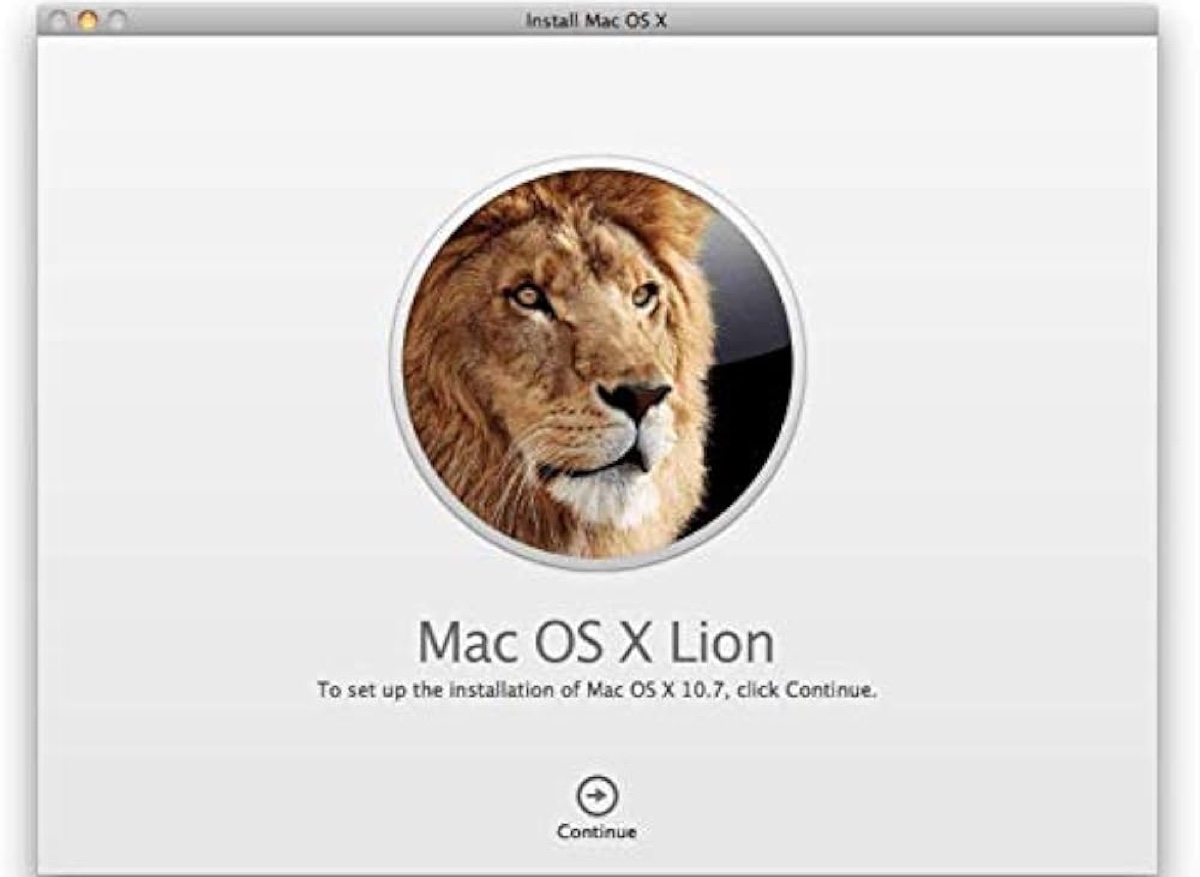
This article is written in Canadian English and intended for readers in Canada.
Some users require a Mac OS X Lion installer to create a bootable USB for an older iMac that has been erased. Unfortunately, this process is no longer straightforward, as Lion is no longer distributed through the Mac App Store, and the .pkg files that occasionally appear cannot be converted into a complete installer. In certain cases, Recovery Mode is also unavailable, preventing a standard reinstallation.
You may also need to download Mac OS X Lion 10.7 for an older Mac that does not support newer macOS releases. The good news is that this guide provides direct links to download the Mac OS X Lion installer app, DMG file or ISO image.
Note: You may also find this guide helpful for understanding various methods to download and install Mac OS X Lion: Mac Operating System Download & Install Guide.
Tips: If you want to download OS X 10.7 Lion safely, using iBoysoft DiskGeeker for Mac is recommended. This tool provides a bootable DMG file for OS X Lion and other macOS versions, and it also allows you to create a bootable USB installer efficiently.
To download OS X Lion with iBoysoft DiskGeeker, follow the steps below:
Step 1: Download and open iBoysoft DiskGeeker.
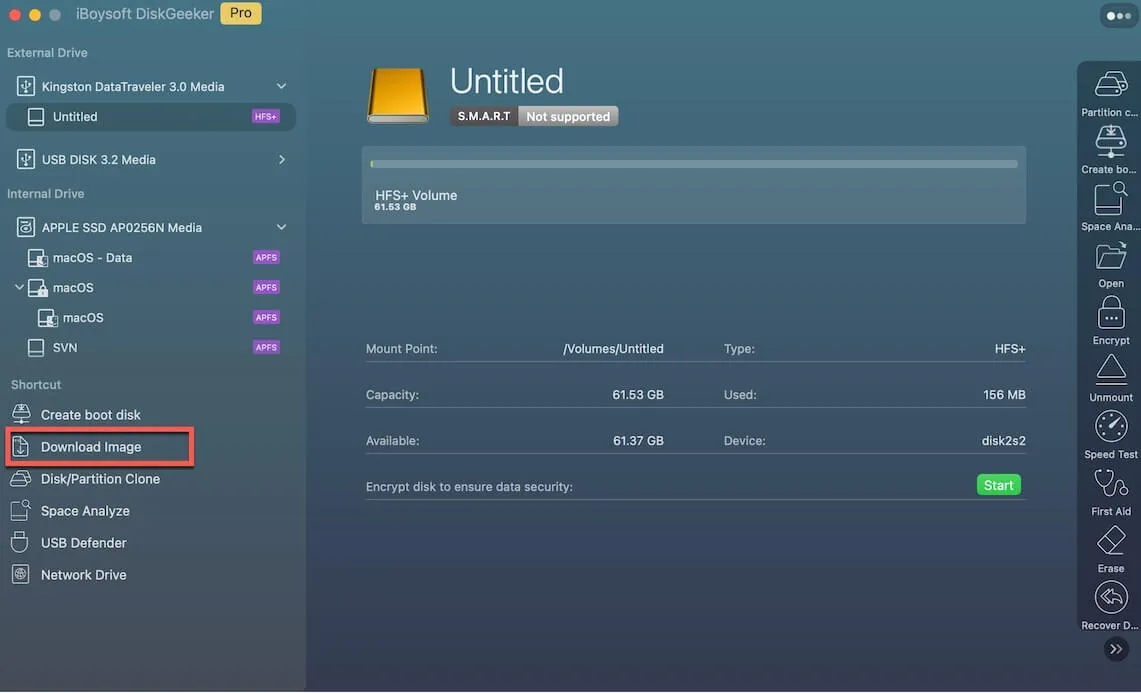
Step 2: Select Download Image from the left-side menu.
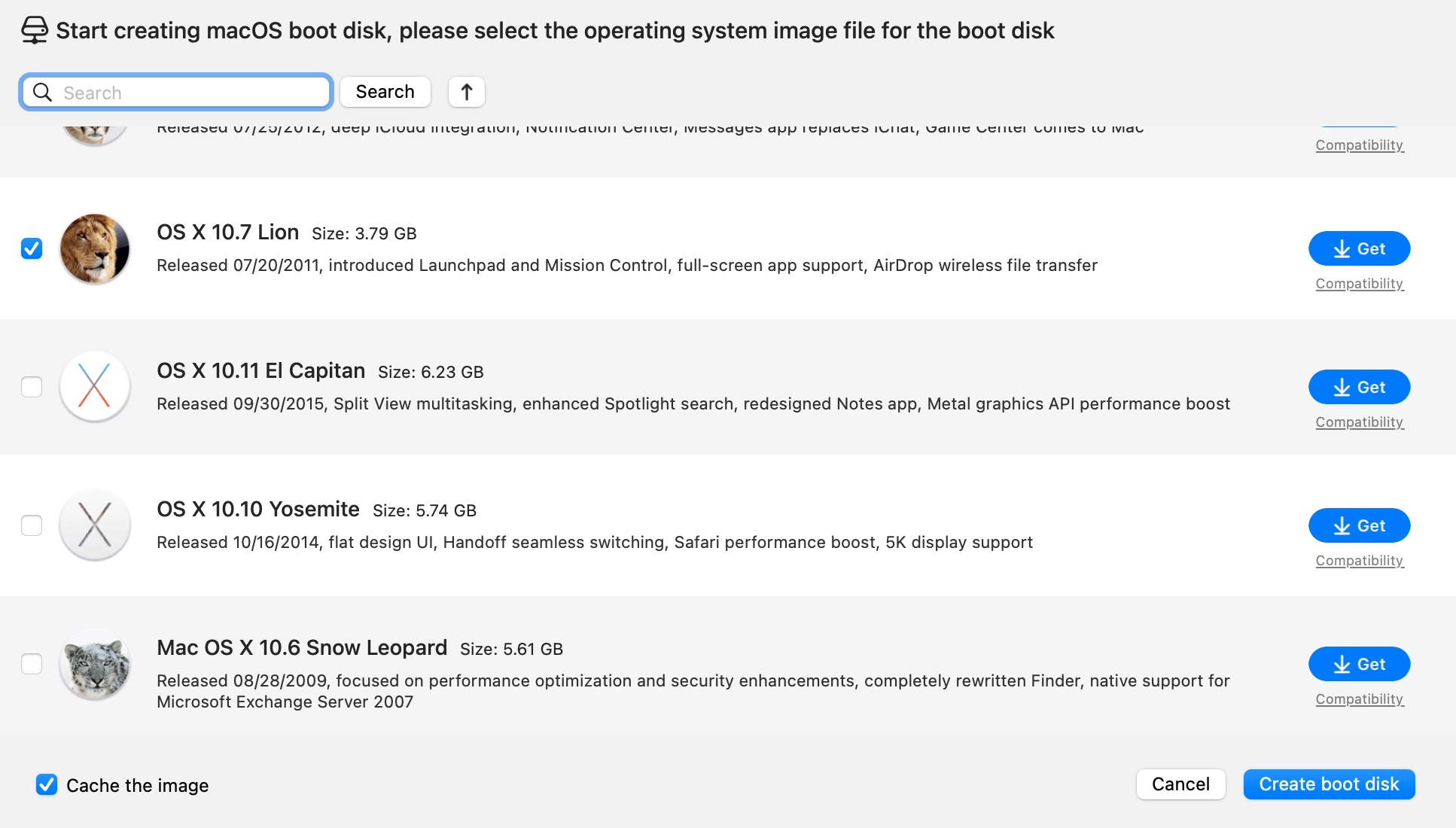
Step 3: Choose OS X 10.7 Lion and click Get.
For additional legacy macOS versions, see: Download Old Mac OS Full Installers.
Download Mac OS X Lion installer
There are very few sources that still offer the Lion installer in the .app format. Fortunately, a preserved copy is available on Internet Archive. The file is a 3.5 GB ZIP archive named Install Mac OS X Lion.app.zip.
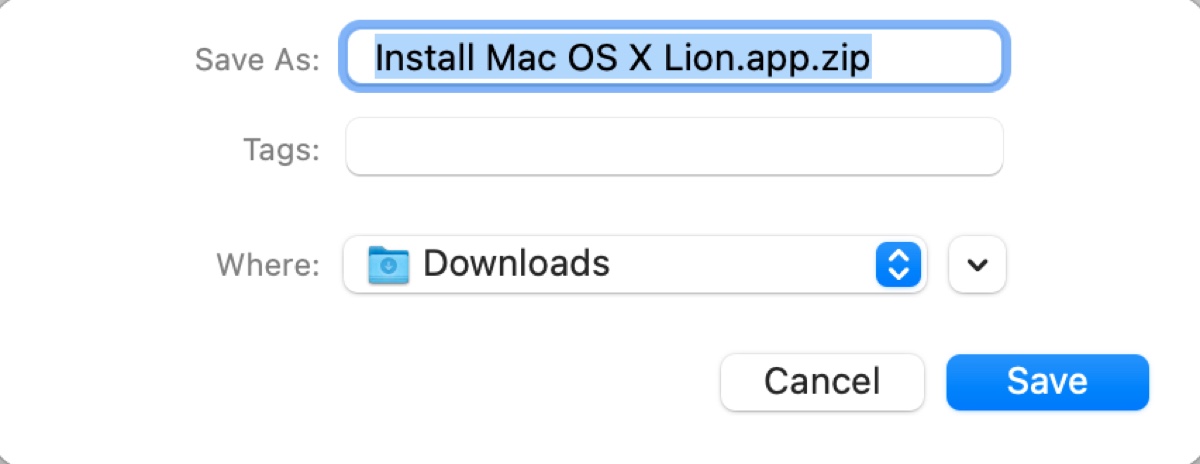
Download Mac OS X Lion Installer
After downloading the ZIP file, extract it to obtain the application installer. This installer can then be used directly to create a Mac OS X Lion bootable USB.
Download Mac OS X Lion DMG
You can also choose to download the OS X Lion DMG (.dmg) file to create bootable installation media. A DMG file is a disk image that contains all files required to install or upgrade to Mac OS X Lion. One advantage of this format is that it supports bootable media creation on both macOS and Windows.
The official Mac OS X Lion DMG file is still hosted on Apple’s servers. Copy the link and open it in Safari to start the download.
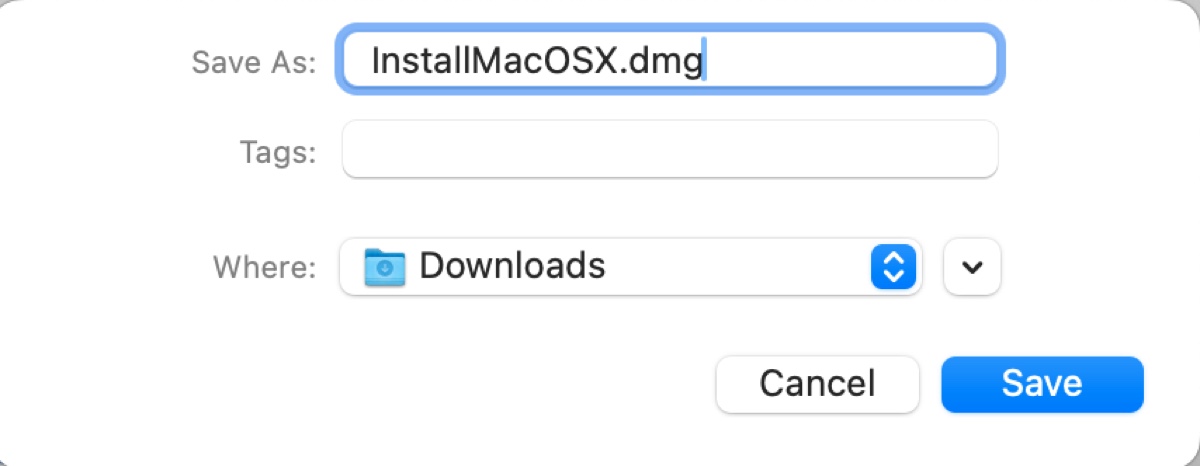
After the download is complete, you can extract the installer and proceed to the section below to create a bootable Lion USB on a Mac. If you are using Windows, refer to this guide instead: How to Create macOS Bootable USB from Windows 10/11.
To obtain the Lion installer from the disk image, follow these steps (a Mac compatible with Mac OS X Lion is required):
- Double-click the Mac OS X Lion DMG file to mount it.
- Open the .pkg file inside and follow the on-screen instructions to save the installer in the Applications folder.
You can share this information to help others download Mac OS X 10.7 Lion DMG at no cost.
Download Mac OS X Lion ISO
If you plan to install Mac OS X Lion on a Windows PC, you will need the ISO format. ISO images are compatible with virtual machine software such as VirtualBox, VMware and Parallels Desktop.
Download Mac OS X Lion ISO (Mediafire)
Download Mac OS X Lion ISO (Google Drive)
Credits go to techrechard.com.
How to make a Mac OS X Lion Bootable USB?
Note: As mentioned earlier, iBoysoft DiskGeeker simplifies the process of creating a bootable USB installer for OS X Lion.
Step 1: Download and install iBoysoft DiskGeeker.
Step 2: Click Create boot disk from the Shortcut section.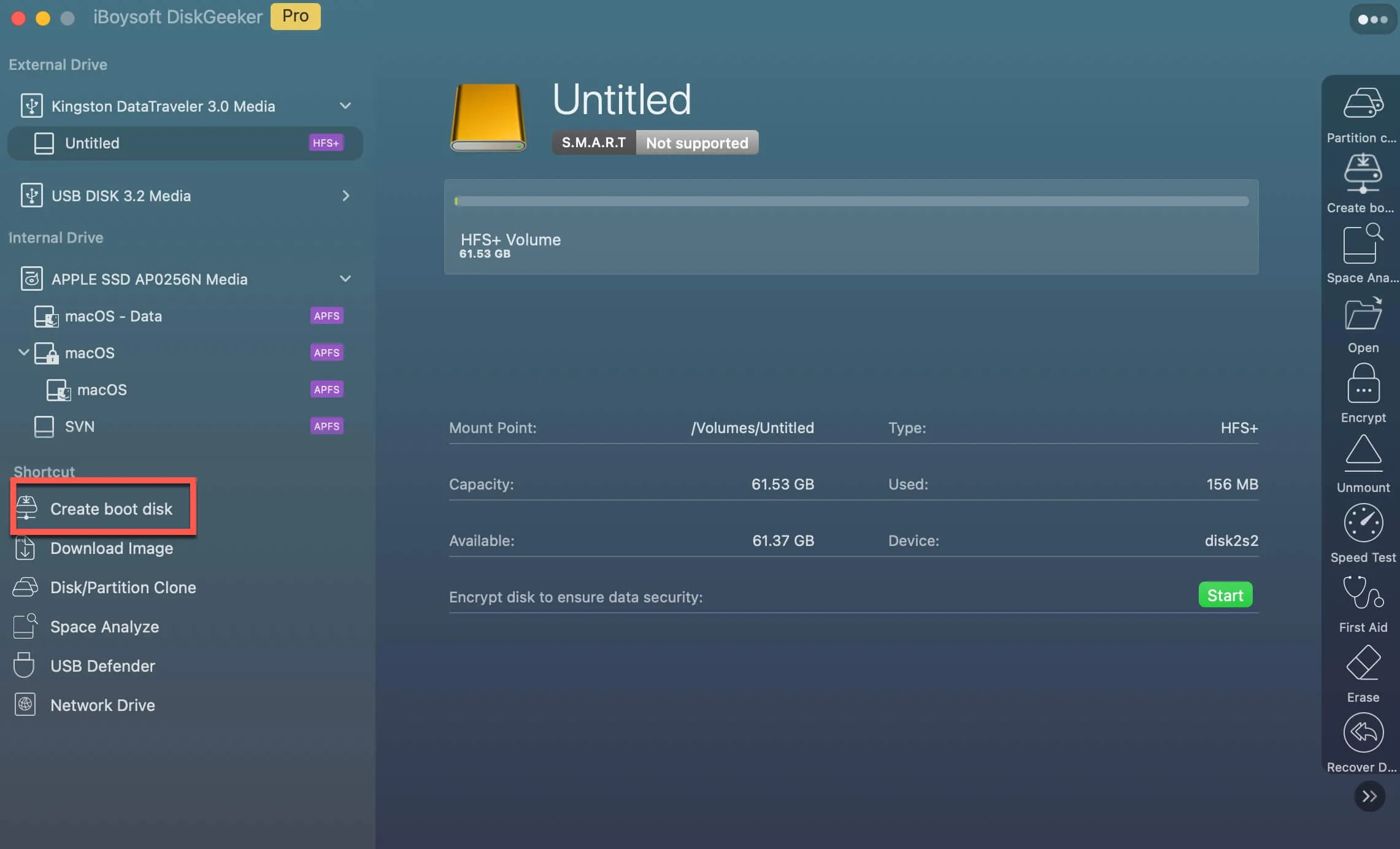
Step 3: Select your external drive and click Select > Continue.
Step 4: Pick OS X 10.7 Lion and click Create boot disk.
Step 5: Wait while the bootable USB installer is created.
If the Lion installer is already located in your Applications folder, you can also create the bootable USB manually by following these steps:
- Insert a USB drive with at least 8 GB of available space.
- Open Disk Utility.
- Select View > Show All Devices.
-
Choose the physical USB disk and click Erase (this deletes all existing data).
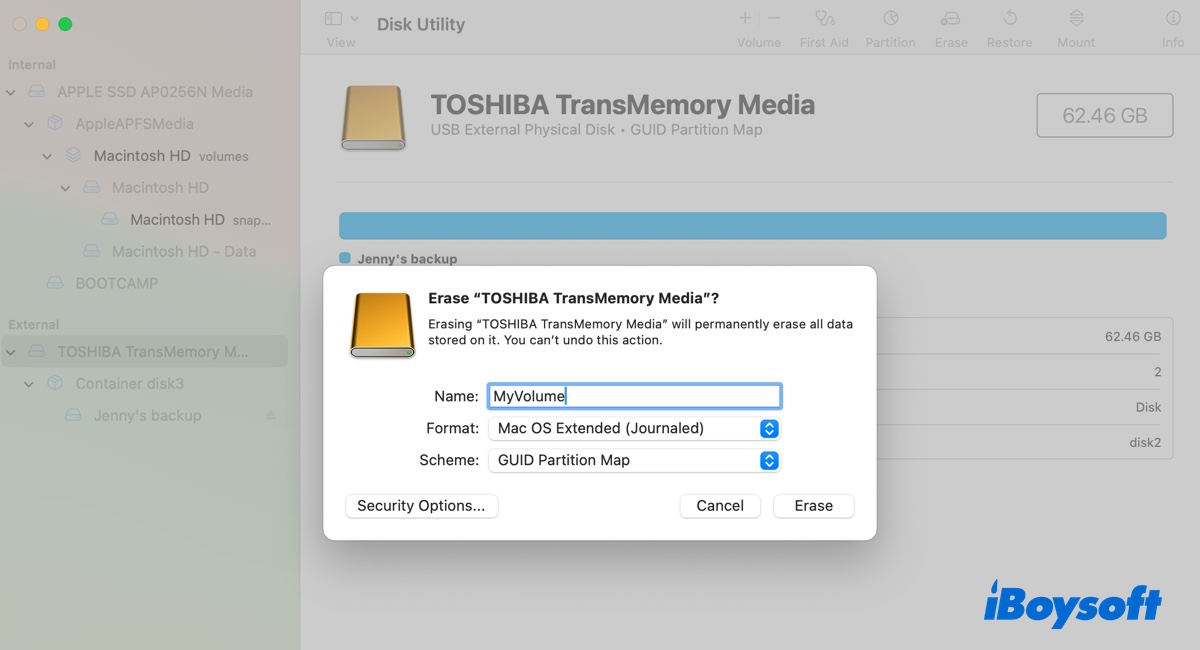
- Name the drive MyVolume.
- Set the format to Mac OS Extended (Journaled).
- Select GUID Partition Map.
- Click Erase.
- Open Terminal.
- Enter the following command and press Enter:sudo /Applications/Install\ Mac\ OS\ X\ Lion.app/Contents/Resources/createinstallmedia --volume /Volumes/MyVolume --applicationpath /Applications/Install\ Mac\ OS\ X\ Lion.app
- Enter your administrator password and press Enter.
- Type Y to confirm the erase operation and press Return.
- Wait until you see the message "Install media now available at".
- Safely eject the USB drive.
Once complete, you can boot your Mac from the external USB to install macOS.
Also read: Free Download Mac OS X 10.8 Mountain Lion Full Installer, DMG & ISO